How to Create a YouTube Channel: From Google Account to Monetization Application — Goutub Guides
Goutub → Guides → How to Create a YouTube Channel: From Google Account to Monetization Application
Guide

How to Create a YouTube Channel: From Google Account to Monetization Application

A step-by-step guide to setting up a YouTube channel: a dedicated account, channel name and @handle, country of residence (why not Kyrgyzstan), phone verification, channel art, upload defaults, your first videos, and the road to the Partner Program.

11 min read Usen Asanov #YouTube#запуск#монетизация#гайд
Jump to the steps →

Why Your Channel Must Be Set Up Right from Day One

You can create a YouTube channel in two minutes. But most channels are set up haphazardly: tied to a personal Google account, using the profile name, with no country set and no verified phone number. Then you discover that videos longer than 15 minutes won't upload, custom thumbnails are locked, and monetization isn't available for the country you selected.

Some of these settings are painful to change later: switching the country on an established channel or migrating to a different account means back-and-forth with support, repeated reviews, and lost weeks. It's far better to do it right the first time, in the correct order.

The most important setting in this guide is your channel's country of residence. The YouTube Partner Program, which unlocks ad revenue, is not available in Kyrgyzstan. That's why we choose a country where it is available in the channel settings. How to do that — and what it means for payouts — is covered in step 4.

Below are 12 steps, from creating a Google account to applying for monetization. Each step is a specific action in the YouTube interface — no filler.

Jump to the steps

⚡ AI · Goutub

Your First Videos for a New Channel — with Goutub

An empty channel gets no algorithmic push. To start appearing in recommendations, you need your first 5–10 videos in one niche published on a consistent schedule. Goutub produces them without a camera or editing: you provide the topic, and the platform writes the script, narrates it with a natural voice, selects visuals, and assembles the finished video.

For every video, Goutub prepares a complete YouTube package: title options, a description with timecodes, tags and hashtags, and thumbnails with text. All you do is upload the file and paste the copy into the fields.

Videos are scheduled on a calendar: you book a time slot and the video is ready by morning. That gives your channel a consistent publishing schedule from week one — exactly what the algorithm values in new channels.

8 Principles of a Properly Configured Channel

1

One channel, one niche

YouTube shows videos to people who liked similar content. If your channel mixes reviews, vlogs, and true crime, the algorithm has nothing to latch on to. Choose your niche before creating the channel.

2

A dedicated account for your channel

The personal email tied to your bank, phone, and documents shouldn't be the login for your channel. A dedicated Google account is easier to secure and hand off to a team.

3

Your country determines access to revenue

The Partner Program, Super Thanks, channel memberships, and AdSense payouts all depend on the country of residence set in your channel settings. The program is unavailable in Kyrgyzstan — so we choose a country where it is available.

4

Two-factor protection from day one

Recovering a hijacked channel takes weeks. Two-factor authentication is required for the Partner Program — enable it immediately, not "later".

5

Verified phone number

Without a verified phone number, YouTube won't let you upload videos longer than 15 minutes, set custom thumbnails, or run live streams. One step most people skip.

6

Branding before your first video

Your avatar, banner, description, and links should be ready by the time the first viewer clicks on your channel name. An empty page dramatically reduces subscriptions.

7

"Not made for kids" audience setting

If your content is not made for kids, mark it as such in settings. Otherwise YouTube will disable comments, notifications, and personalized ads — and monetization will be negligible.

8

Consistency beats perfection

The algorithm gives a new channel its biggest opportunity in the first 5–10 videos. Two solid videos per week on a schedule beats one perfect video once a month.

12 Best Practices for Setting Up Your Channel

Concise rules that save you weeks of back-and-forth with YouTube and AdSense support.

A name people actually search for

Your channel name should reflect your niche or a clear promise — not your personal name (unless you're a media personality).

A @handle with no numbers or underscores

Keep it short, readable, and consistent with your channel name. It's something you'll say out loud.

One country everywhere

The country in your channel settings, Google account, and future AdSense account must all match. Mismatches are a common reason payouts get frozen.

Don't change your country after launch

Changing the country on an established channel triggers repeat reviews. Choose once and stick with it.

Recovery email and phone

Add a recovery email and phone number to your Google account — they're your only lifeline if the account gets hijacked.

Channel keywords

5–10 niche keywords in your channel settings help YouTube understand who to show your content to.

Banner with a safe zone

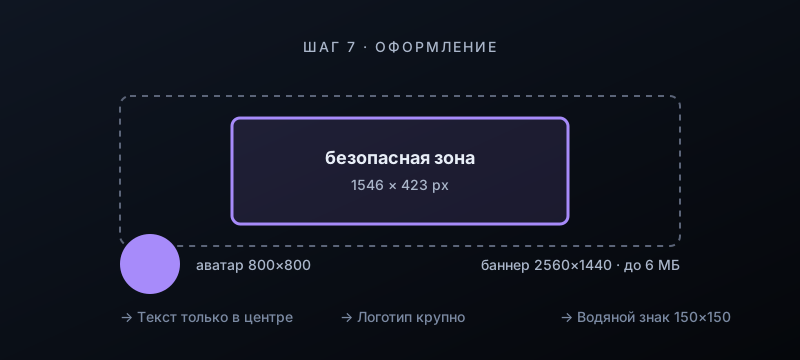
Text and your logo should sit only within the central 1546×423-pixel safe zone — everything outside it gets cropped on mobile.

Trailer for new viewers

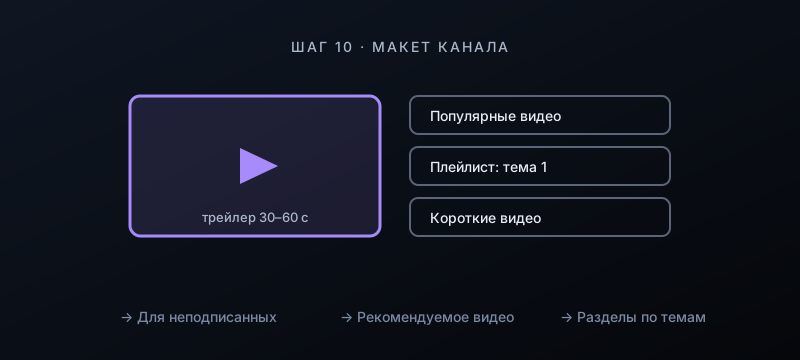
30–60 seconds covering what the channel is about, who it's for, and how often videos go up. Shown on your channel homepage to non-subscribers.

Description template

Default upload settings: your signature, links, and hashtags are automatically applied to every new video.

Launch with a series

Launch your channel with 3–5 ready-made videos and a one-month plan, not a single upload.

Playlists from day one

Even with three videos, create a playlist — it keeps viewers on your channel and surfaces in search results.

Permissions, not passwords

Grant access to editors or managers through Permissions in YouTube Studio — never share a password.

12 Steps: From Account Setup to Monetization Application

1.Create a dedicated Google account

Go to accounts.google.com and create a new email address specifically for your channel. In the Google account settings, add a recovery email and phone number, then enable two-step verification under Security. Set the country in your account's personal info to match what you'll choose for the channel in step 4.
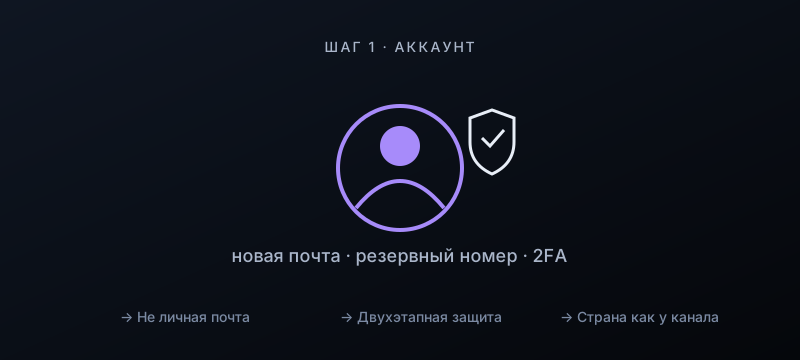
Step 1. Create a dedicated Google account

2.Create a channel with its own name

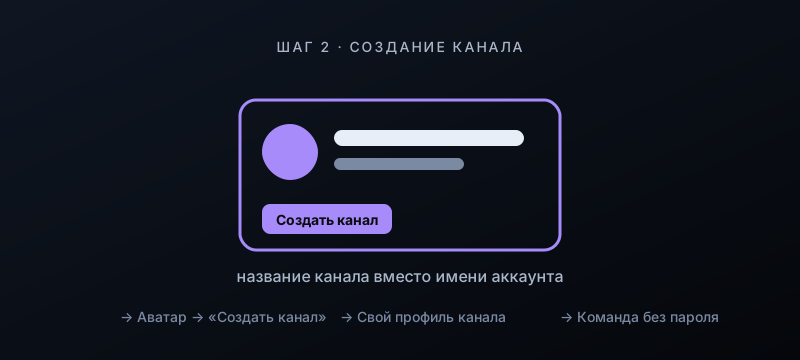
Go to youtube.com, sign in with the new account, click the avatar in the top right → Create channel. In the creation dialog, replace the account name with your channel name. This gives the channel its own profile and lets you add team members later without sharing a password.

Step 2. Create a channel with its own name

3.Set your @handle

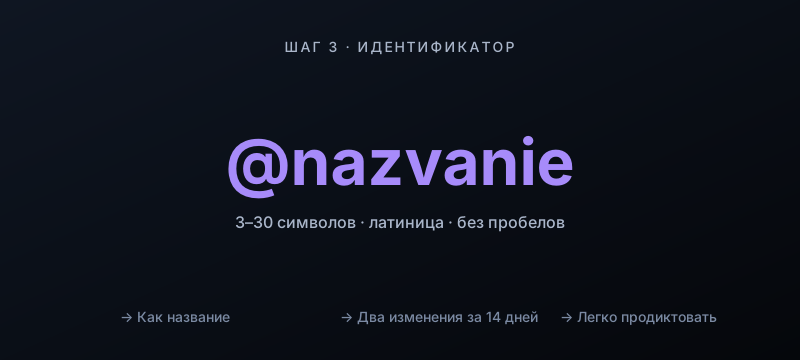
YouTube Studio → Channel Customization → Basic info → Channel URL. Between 3 and 30 Latin characters, no spaces, ideally matching your channel name. You can change it no more than twice every 14 days, so decide in advance.

Step 3. Set your @handle

4.Set your country of residence — not Kyrgyzstan

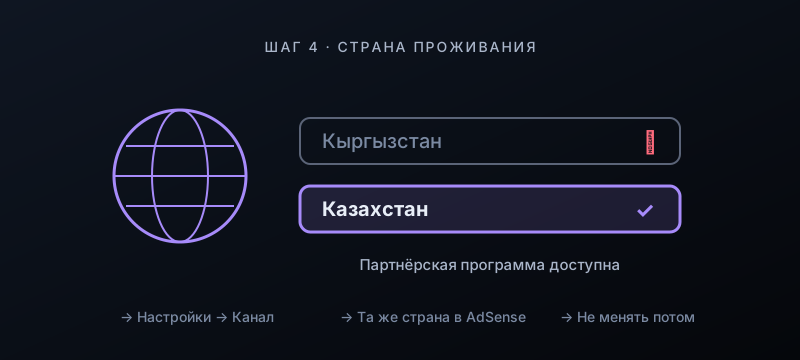
YouTube Studio → Settings (gear icon, bottom left) → Channel → Basic info → Country of residence. The YouTube Partner Program is not available in Kyrgyzstan, so choose a country where it is — for example, Kazakhstan. This field determines whether monetization opens for you and must match the country of your future AdSense account.

Important: AdSense will verify your address by mailing a PIN and will transfer funds to an account it supports for that country. Choose a country where you can receive mail and open a bank account. Do not change the selected country after setting it.

Step 4. Set your country of residence — not Kyrgyzstan

5.Add keywords and set your audience

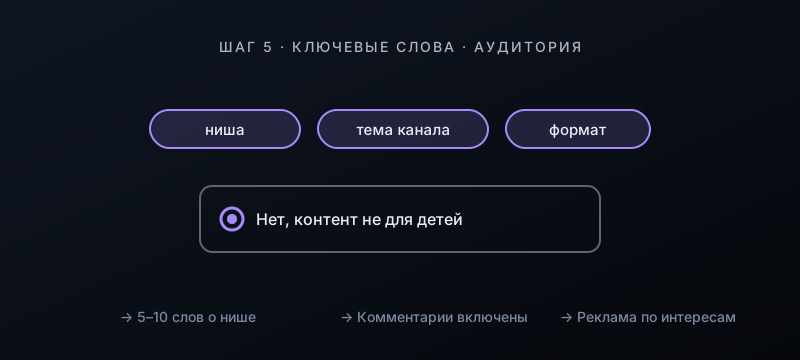
Still in Basic info, add 5–10 niche keywords. Then go to the Advanced settings tab → Audience: if your videos are not made for kids, select "No, my content is not made for kids." With the "made for kids" flag on, YouTube disables comments, notifications, and personalized ads.

Step 5. Add keywords and set your audience

6.Verify your phone number

Go to youtube.com/verify and confirm your number via SMS or call — a +996 number works fine. This unlocks videos longer than 15 minutes, custom thumbnails, live streams, and the ability to dispute Content ID claims. One phone number can verify no more than two channels per year.

Step 6. Verify your phone number

7.Upload your profile picture and banner

Channel Customization → Branding. Profile picture: 800×800 px square, featuring your face or logo prominently. Banner: 2560×1440 px, file up to 6 MB; text and logo must stay within the central 1546×423 px safe zone — everything outside it gets cropped on mobile. Watermark: 150×150 px logo that appears on all videos as a subscribe button.

Step 7. Upload your profile picture and banner

8.Write your description and add links

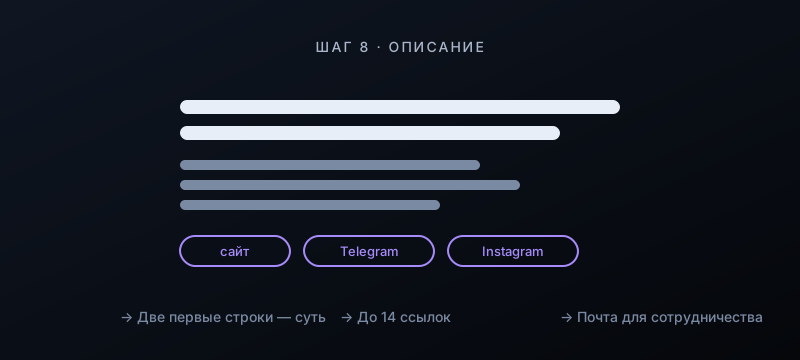
Basic info → Description: the first two lines describe what the channel is about and who it's for (they appear in search results), followed by your publishing schedule and the value you offer viewers. Add links to your website and social media (up to 14) and a contact email for business inquiries — it shows in the About section.

Step 8. Write your description and add links

9.Configure upload defaults

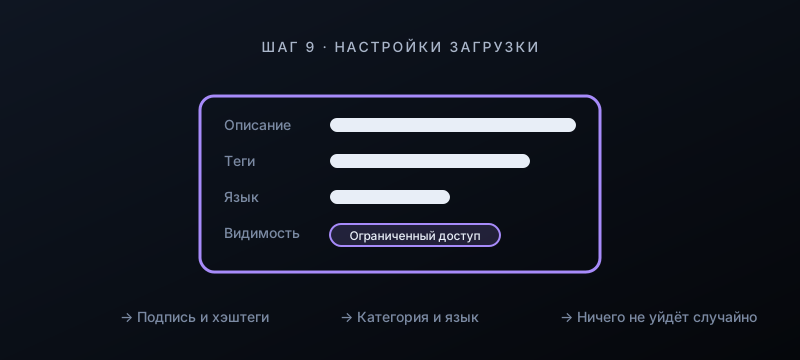
Settings → Upload defaults: a description template with your signature, links, and hashtags, tags, category, video language, and set default visibility to Unlisted so nothing goes live by accident. These fields will be pre-filled for every new upload.

Step 9. Configure upload defaults

10.Build your homepage: trailer, sections, playlists

Channel Customization → Layout: add a channel trailer for non-subscribers (30–60 seconds) and a featured video for returning subscribers. Below that, set up sections: popular videos, themed playlists, Shorts. Create your first playlist from your initial three videos.

Step 10. Build your homepage: trailer, sections, playlists

11.Launch your first videos as a series

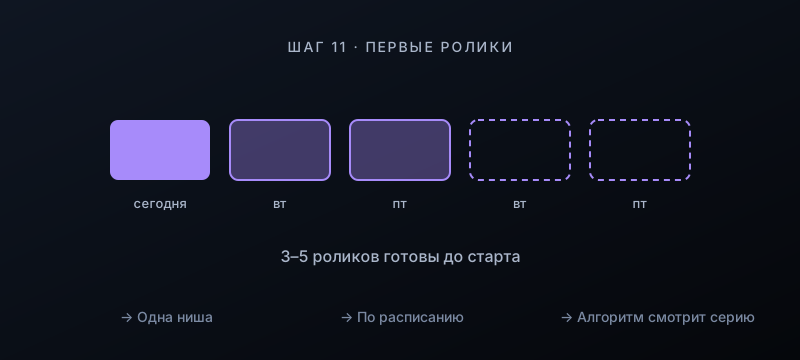
Don't publish one video and wait. Prepare 3–5 videos in the same niche, release the first, and schedule the rest — for example, Tuesdays and Fridays. The algorithm judges a new channel by its series: watch time, thumbnail click-through rate, and returning viewers.

Step 11. Launch your first videos as a series

12.Reach monetization

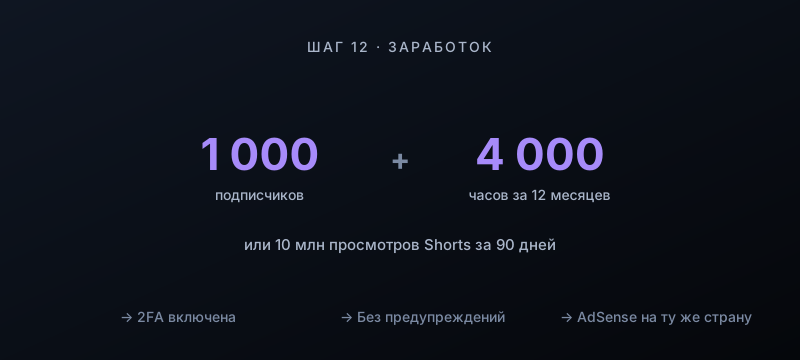
YouTube Studio → Earn. Partner Program requirements: 1,000 subscribers and 4,000 watch hours in the past 12 months, or 10 million Shorts views in 90 days; two-step verification enabled; no active community guideline strikes. Intermediate threshold for Super Thanks and channel memberships: 500 subscribers, 3 uploads in 90 days, and 3,000 watch hours or 3 million Shorts views. YouTube displays the current figures on that same page.

Create your AdSense account under the same country listed in your channel settings.

Step 12. Reach monetization

Channel created. Now you need videos.

Goutub builds a video from a topic in one pass: script, natural voice-over, visuals, editing, and a YouTube package with thumbnails. Schedule your first five videos on the calendar and your channel launches with a consistent posting rhythm.

Create Your First Video in Goutub
goutub — · Go to Home