How to sign up for Goutub and launch your first video: 8 steps — Goutub Guides
Goutub → Guides → How to sign up for Goutub and launch your first video: 8 steps
Guide

How to sign up for Goutub and launch your first video: 8 steps

Step-by-step guide with screenshots: sign up in a minute, a four-step wizard (topic, style, voice, launch time), a finished video in "My Projects", and publishing to YouTube.

6 min read Usen Asanov #Goutub#запуск#первое видео#гайд
Go to the steps →

What you'll have at the end

Five minutes after signing up, your first video is in the queue: the service handles the script, voiceover, images, and editing on its own. In 20–40 minutes, "My Projects" will show a finished 1080p video, six thumbnails, and a description with tags for YouTube.

Below are 8 steps with screenshots of the web version and the phone. All you need to provide is a topic and two or three choices in the wizard.

Go to the steps

8 steps: from sign-up to publishing

1.Sign up

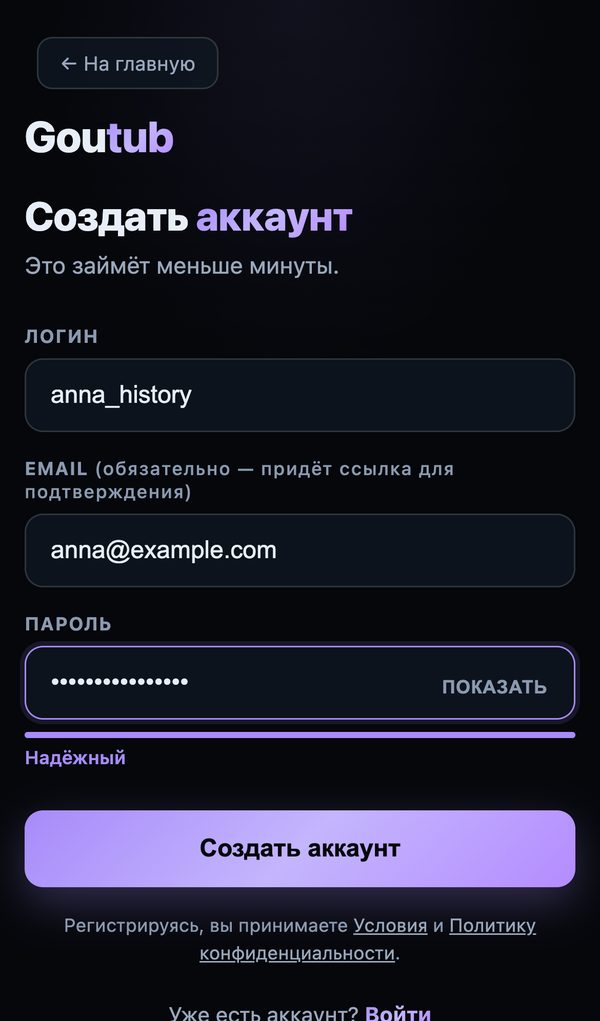
Open goutub.kg/register. A login, an email, and a password of 8+ characters are all you need. After you click "Create account", you land straight in the dashboard, and you can confirm your email later from the message you receive.

If you came through a link with a promo code, the plan activates automatically, and you can also enter the code manually in the "Subscription" section.
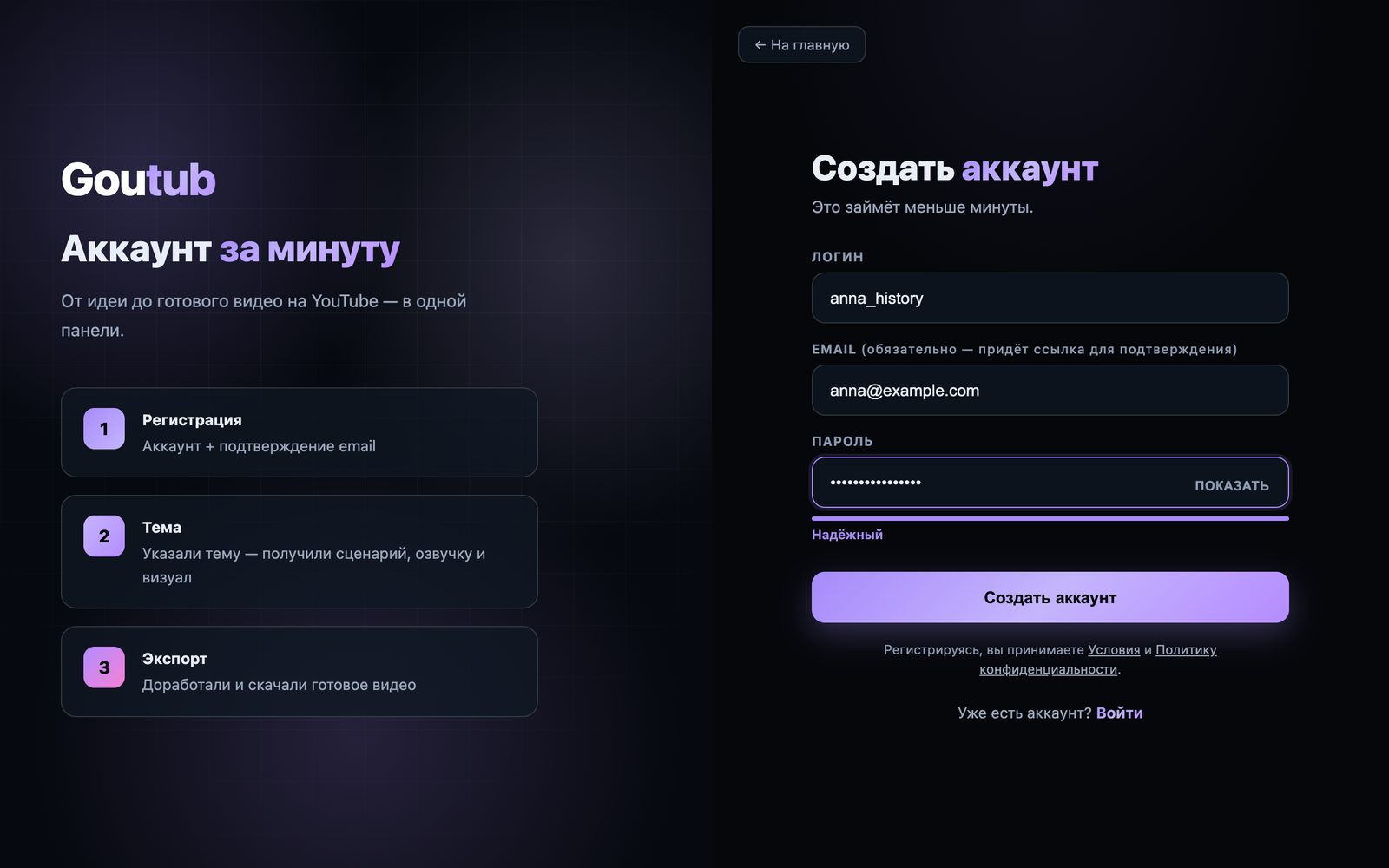
Step 1. Sign up — Web versionWeb version
Step 1. Sign up — PhonePhone

2.Click "Create your first video"

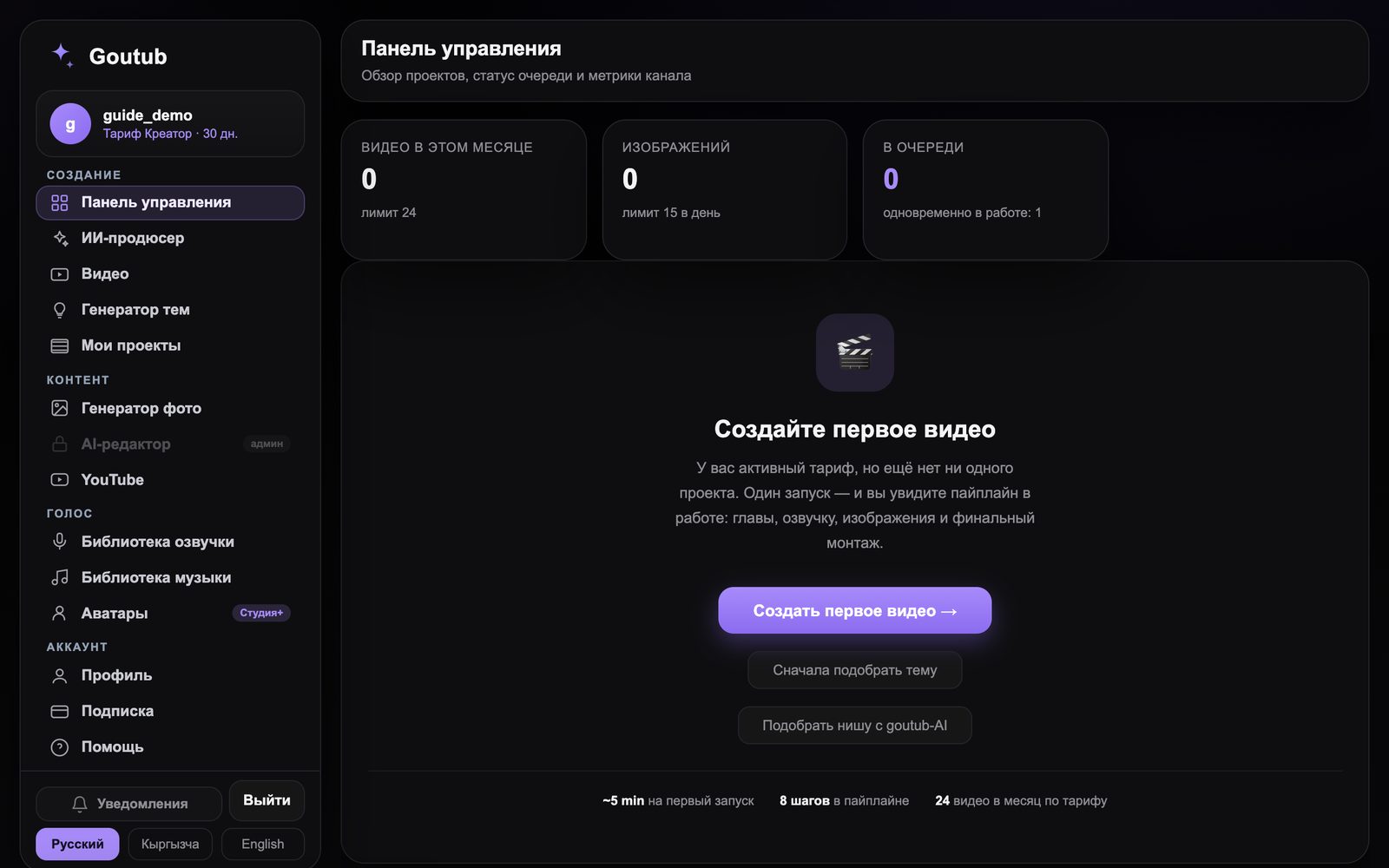
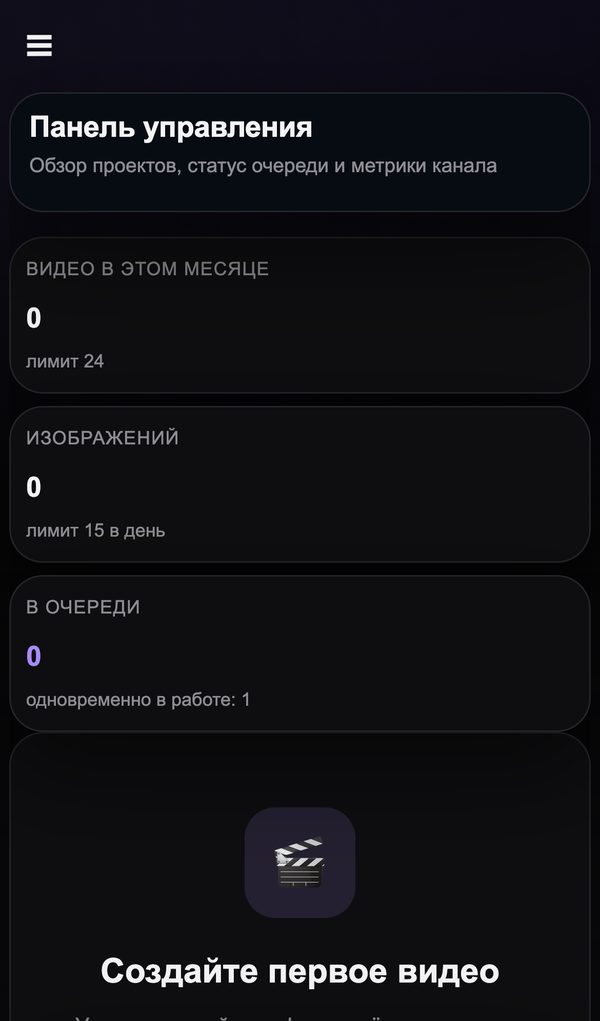
The dashboard shows how many videos are available this month and what's in the queue. The "Create your first video" button opens a four-step wizard. The same four steps are available in the left menu: "Video".

Step 2. Click "Create your first video" — Web versionWeb version
Step 2. Click "Create your first video" — PhonePhone

3."Topic" step: what the video is about

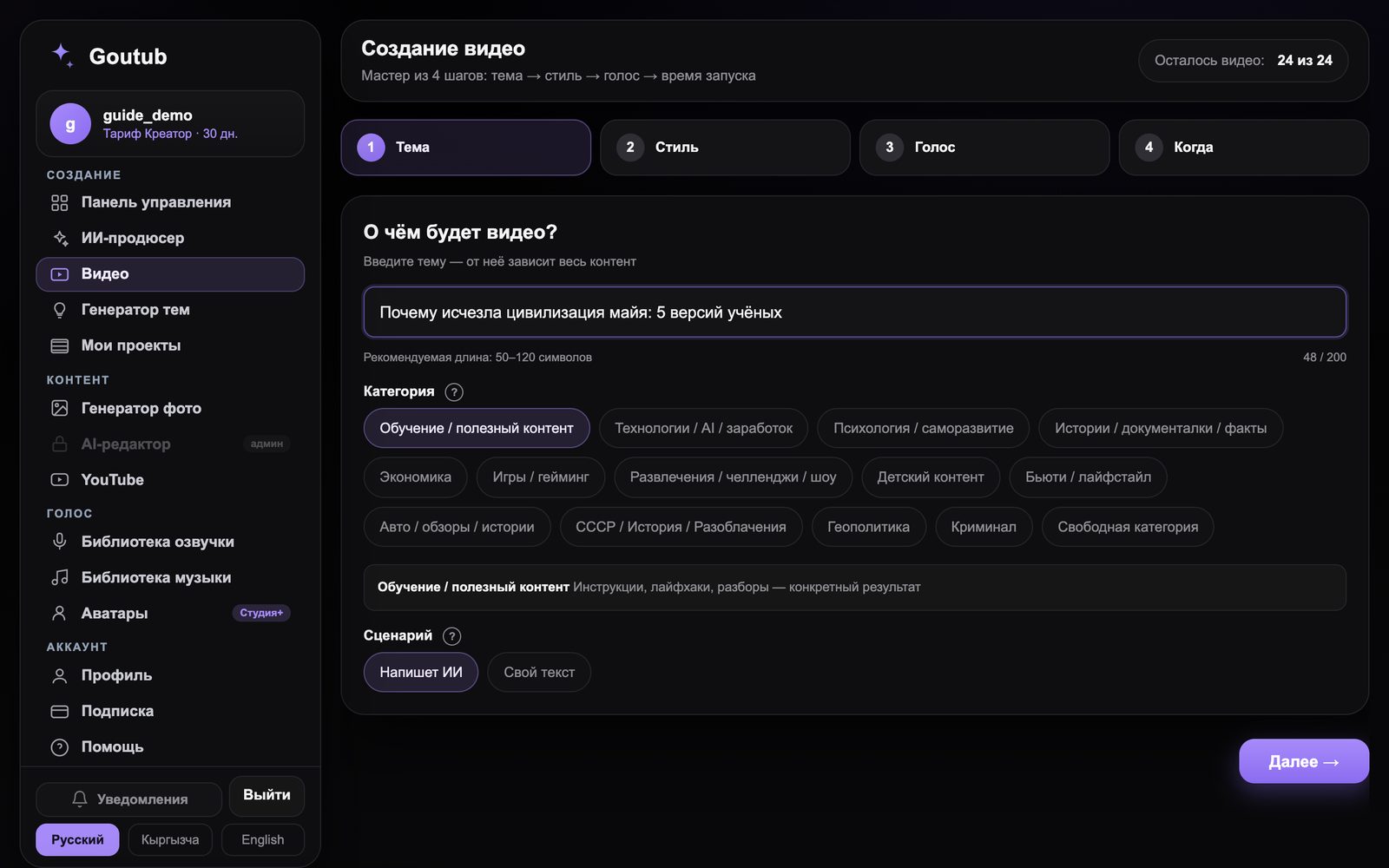
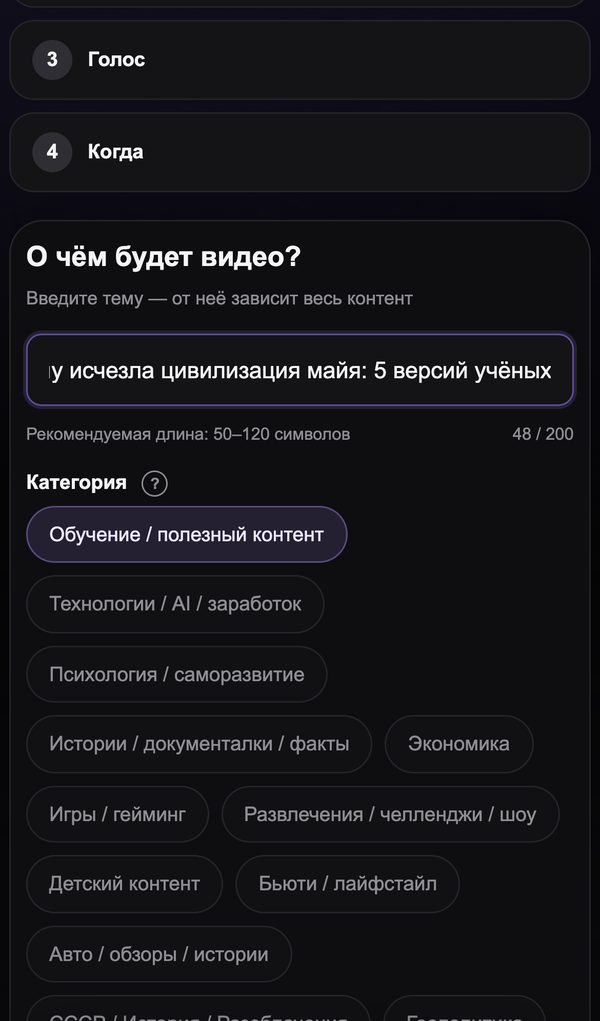
Enter the topic in one phrase of 50–120 characters, for example "Why the Maya civilization vanished: 5 scientific theories". Choose a category, since it determines the script style. Leave the script set to "Written by AI"; "My own text" is for when you already have a finished script.

Not sure what topic to pick? The "Topic Generator" or the AI producer can suggest one — see the guide "How to find your niche".

Step 3. "Topic" step: what the video is about — Web versionWeb version
Step 3. "Topic" step: what the video is about — PhonePhone

4."Style" step: tone, length, language

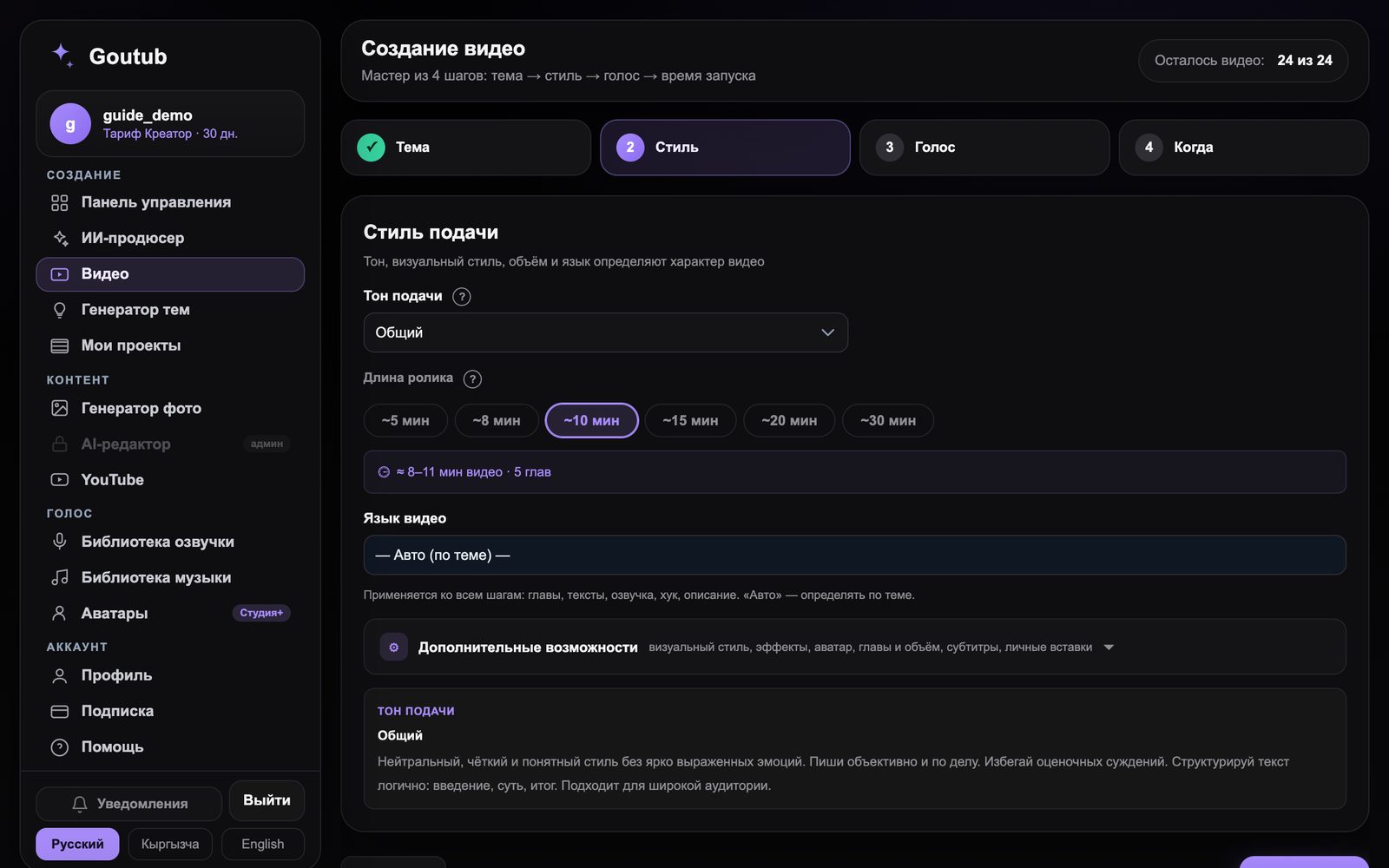
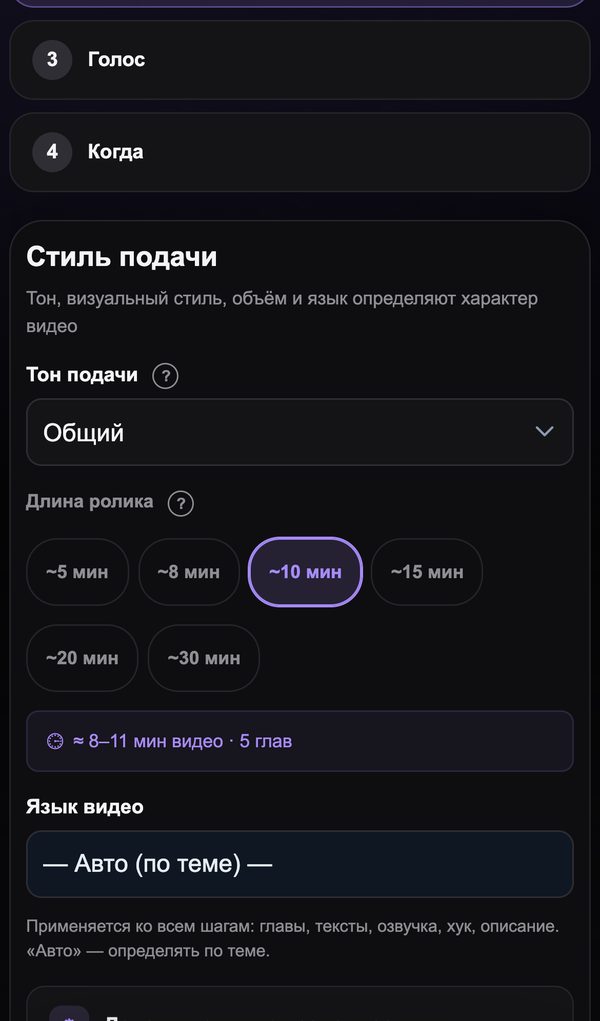
For your first video, set the delivery tone to "General". Set the length to 8–10 minutes: YouTube treats that as a full-fledged video, and a video of that length can hold viewers' attention. Set the language to "Auto" and the service will detect it from the topic. You can leave everything else under "Additional options" untouched.

Step 4. "Style" step: tone, length, language — Web versionWeb version
Step 4. "Style" step: tone, length, language — PhonePhone

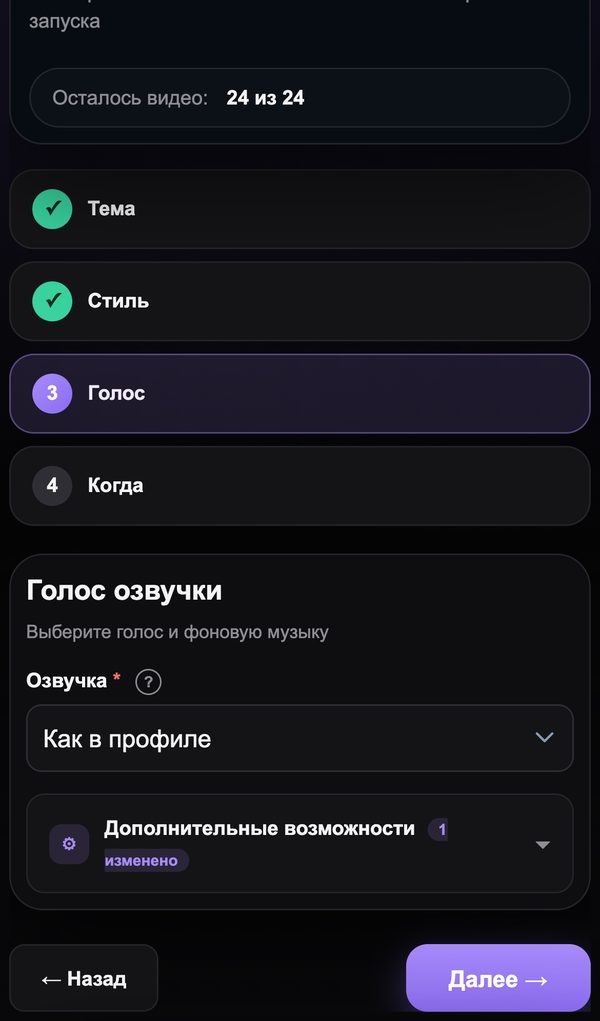
5."Voice" step: who narrates

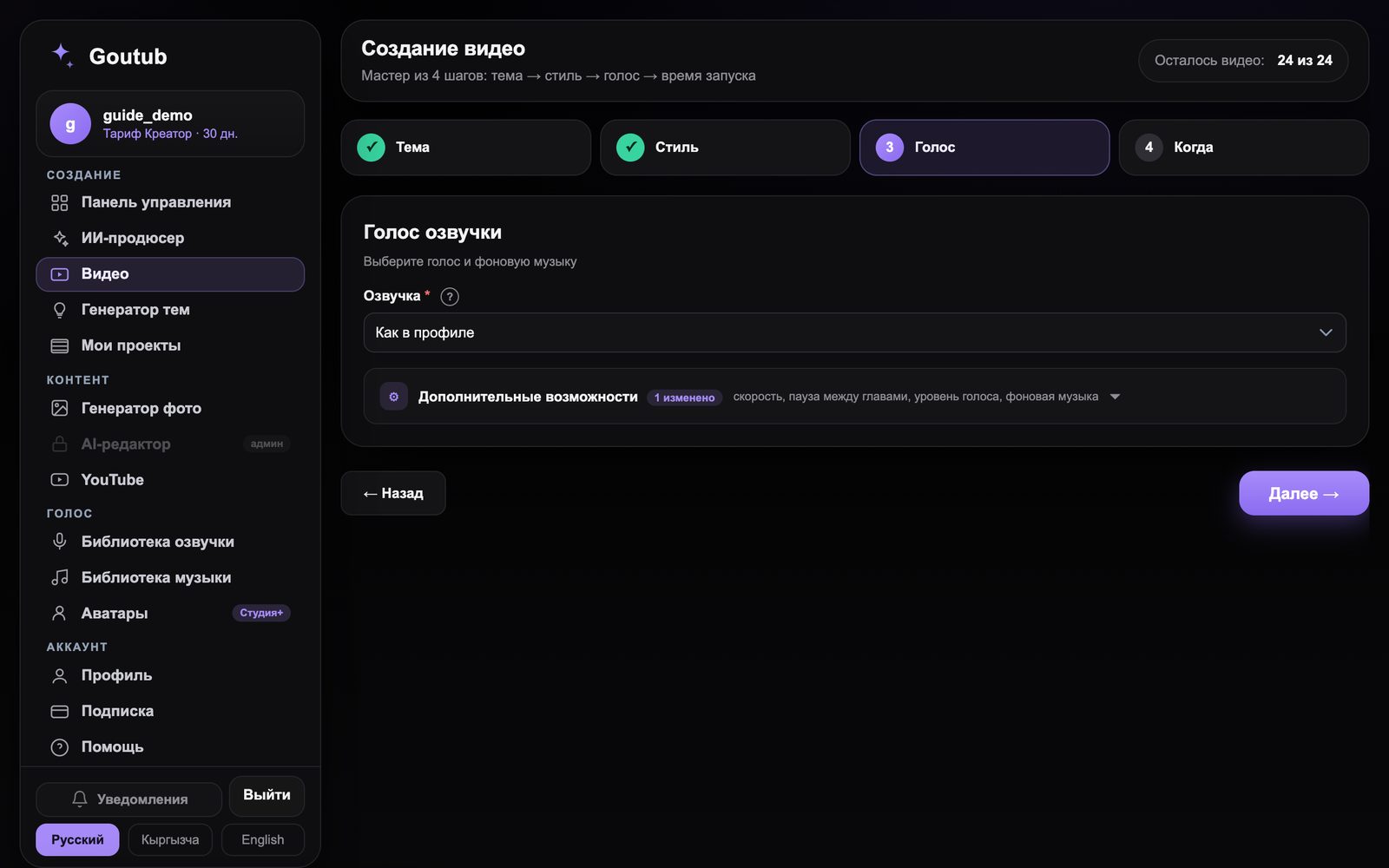
The video can't be assembled without a voice. The fastest way is "As in profile": you choose a voice once in the "Voice Library" and it's applied to all your videos. The "Favorites" option is for a channel with several voices. You can listen to voices in the library, and each one has a sample.

Step 5. "Voice" step: who narrates — Web versionWeb version
Step 5. "Voice" step: who narrates — PhonePhone

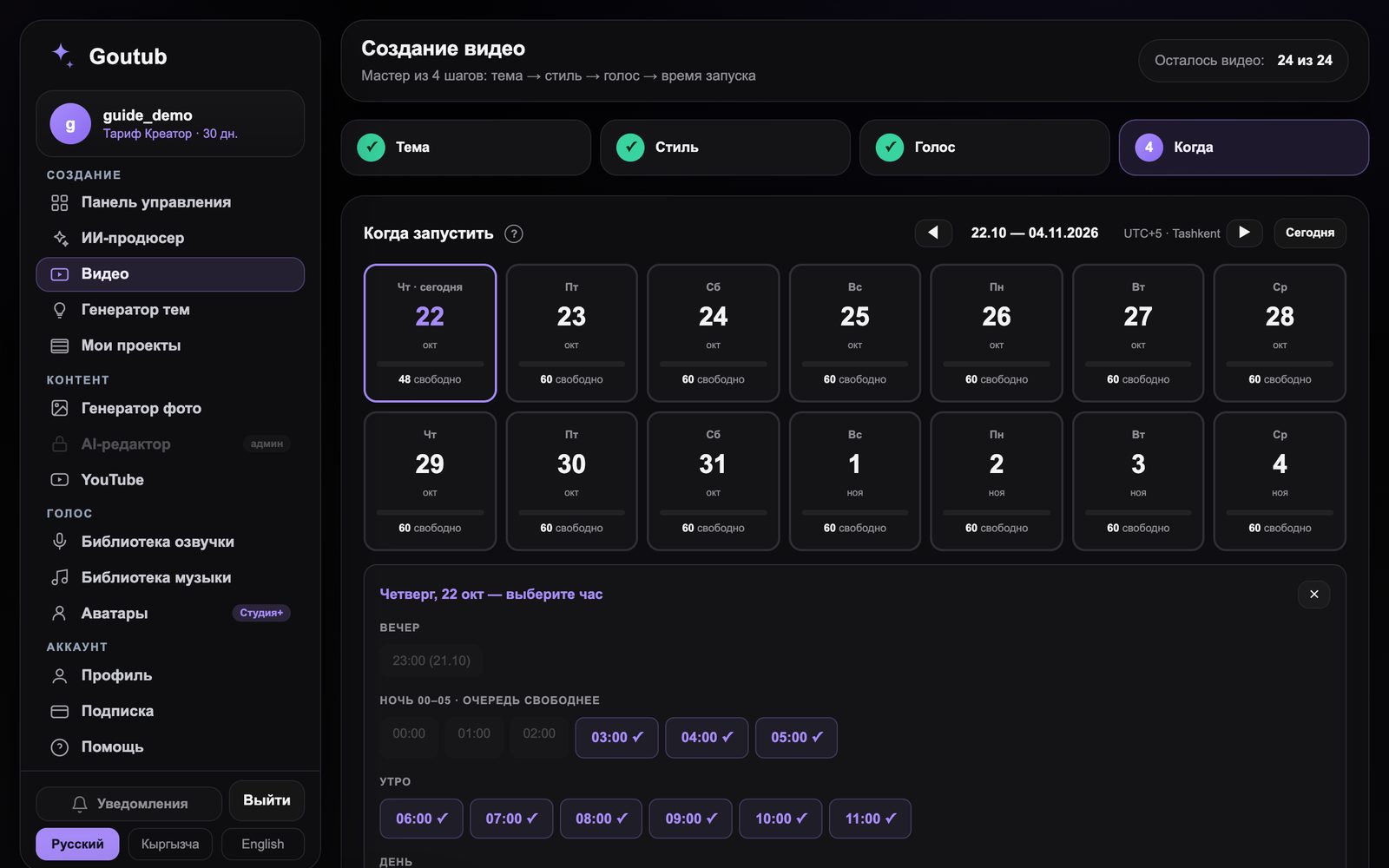
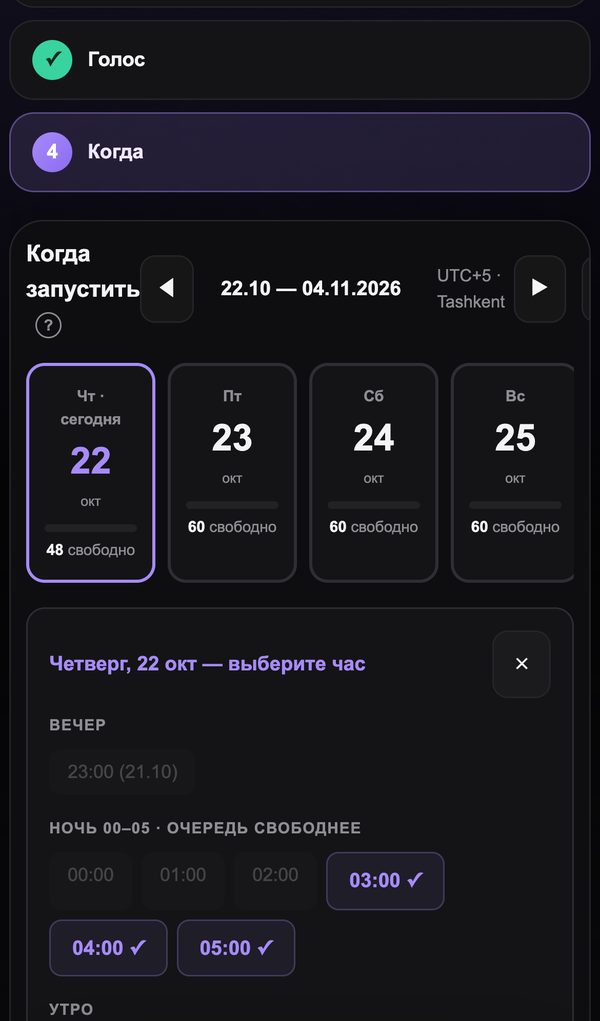
6."When" step: launch now or on a schedule

Pick a day and hour in the calendar, and the video will be assembled by that time, which makes it convenient to schedule a whole week's series in advance. For your first video, click "Launch now". The time is shown in your time zone.

Step 6. "When" step: launch now or on a schedule — Web versionWeb version
Step 6. "When" step: launch now or on a schedule — PhonePhone

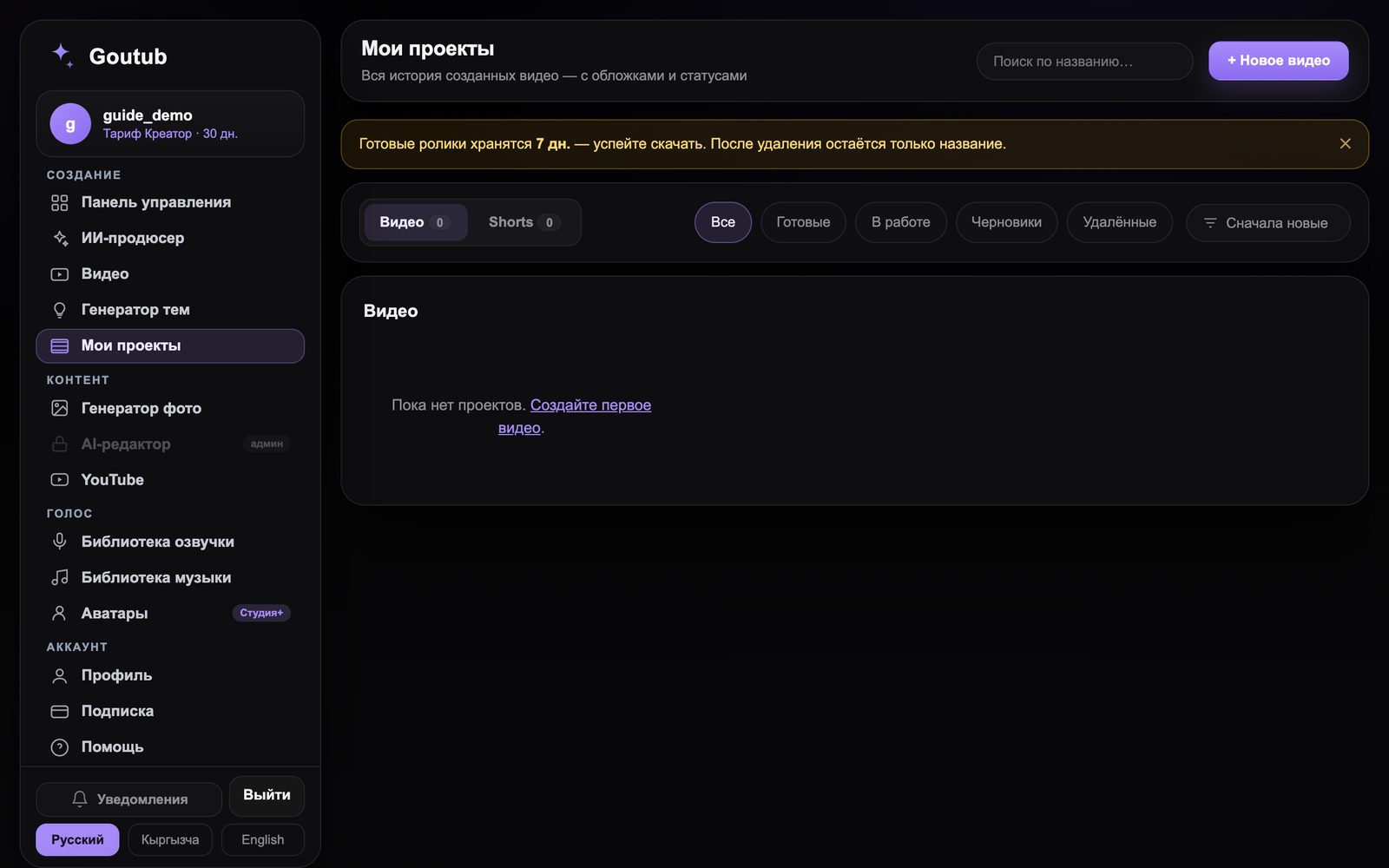
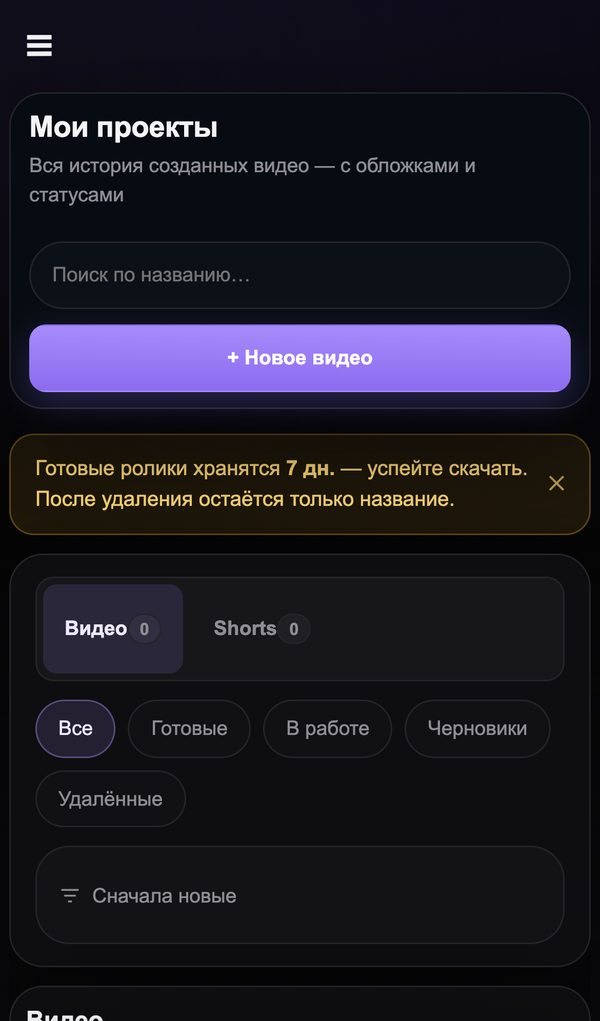
7.Pick up your finished video in "My Projects"

While the video is being assembled, the project shows its stages: script, voiceover, images, editing. The finished video is in "My Projects": a 1080p MP4, subtitles, six thumbnails to choose from, and a YouTube package with the title, description, tags, and timecodes. Files are stored for 7 days, so download them right away.

Step 7. Pick up your finished video in "My Projects" — Web versionWeb version
Step 7. Pick up your finished video in "My Projects" — PhonePhone

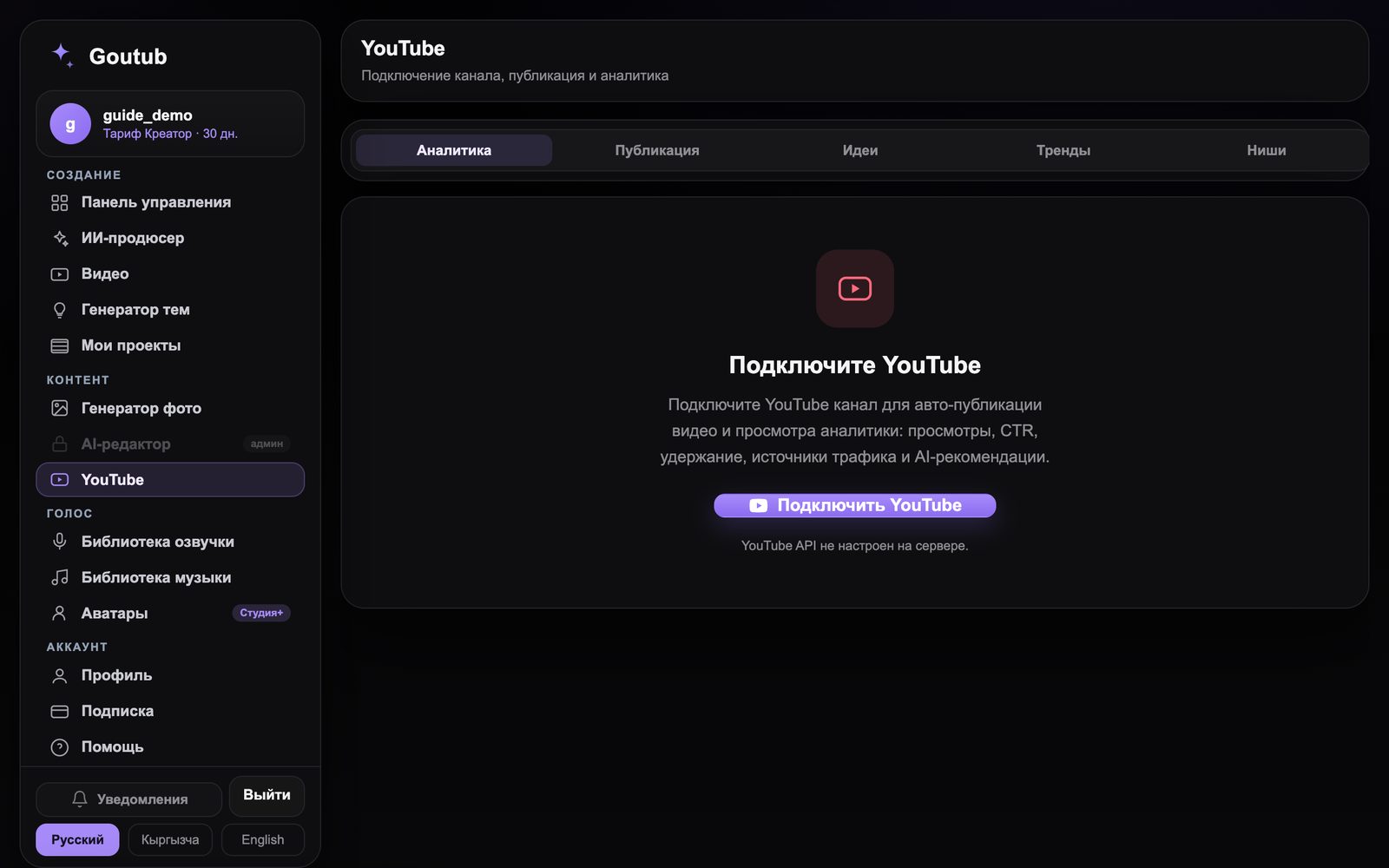
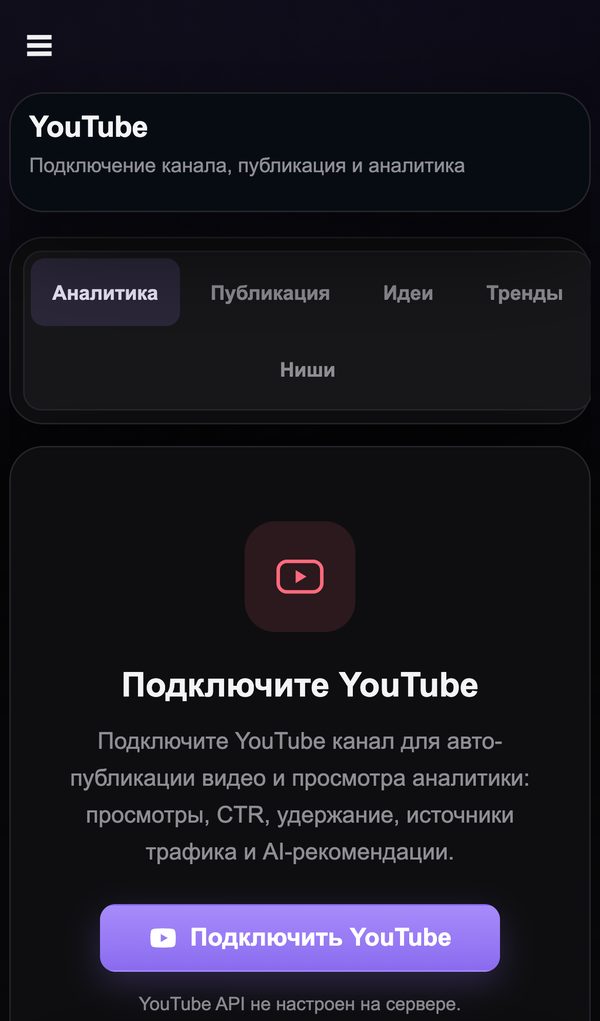
8.Publish on YouTube

Go to the "YouTube" section → "Connect YouTube": sign in to the channel's Google account and allow publishing. After that, videos go to your channel straight from the project, and the "Analytics" tab shows views, thumbnail CTR, and retention. Without a connection, just download the MP4 and upload it to YouTube Studio manually.

Step 8. Publish on YouTube — Web versionWeb version
Step 8. Publish on YouTube — PhonePhone

Try it right now

Signing up takes a minute, and your first video enters the queue five minutes later. The service handles the rest.

Sign up for Goutub
goutub — · Go to home page